So you’ve built a cute little Wix site for your Brisbane boutique, but the platform’s limits are starting to feel like a tight‑fitting glove. You’re probably wondering if you’ll lose the traffic you’ve worked so hard for when you decide to migrate from Wix to WordPress. Spoiler: you don’t have to, you just need a game plan.
First, picture this: a local coffee roaster who switched last year. They kept their Google rankings, kept the same URL structure, and even saw a 15% boost in organic visits because WordPress let them fine‑tune their SEO. That’s the kind of win we love to see, and it starts with understanding what you actually have to move – pages, images, blog posts, and that precious domain.
Here’s a quick reality check. Wix stores your content in a proprietary format, which means you’ll need to export it, then re‑import into WordPress. It sounds technical, but we’ve helped dozens of Queensland small businesses pull this off without a hitch. A solid first step is to audit every page you own – make a spreadsheet of URLs, note which ones rank, and flag any custom scripts or forms.
Next, set up a staging site on a local development environment or a cheap host. That way you can rebuild the design, test redirects, and confirm everything works before you point the domain over. When you’re ready, follow the checklist in our guide Migrate from Wix to WordPress Without Losing SEO or Traffic – it walks you through the exact steps, from export to final go‑live.
While you’re rebuilding, think about the plugins that will make life easier: an SEO plugin for meta tags, a migration plugin to pull in blog posts, and a caching tool to keep site speed snappy. For Brisbane retailers, local payment gateways integrate smoothly with WordPress, giving you more flexibility than Wix’s built‑in options.
Finally, don’t forget the post‑migration audit. Check Google Search Console for crawl errors, run a quick page‑speed test, and update any broken internal links. A few minutes of tweaking now saves you headaches later, and you’ll see the benefits in higher rankings and smoother sales flow. Ready to take the plunge? Let’s get your site thriving on WordPress.
If you’re a Brisbane small‑business owner worried about losing traffic, you can migrate from Wix to WordPress without missing a beat and keep your brand shining online.
Follow our step‑by‑step checklist, set up a staging site, keep URLs intact, and watch your SEO rankings stay steady after the move through 2026.
First thing’s first – before you even think about moving a single pixel, you need a clear picture of what you actually own on Wix. It feels a bit like pulling out a shoebox of old receipts: you’re not quite sure what’s inside until you spread it all out.
Open Google Sheets (or Excel, if you prefer the classic feel) and create columns for URL, page title, meta description, and whether the page is ranking in Google. Toss in a notes column for “custom script”, “contact form”, or “e‑commerce widget”. This simple table becomes your migration bible.
Tip: use the SEO content writing service guide to help you craft meta descriptions that won’t get lost in the shuffle once you’re on WordPress.
Sort your list by traffic (you can pull that from Google Analytics). Those pages that bring in the most visitors are the ones you double‑check for redirects later. If a page is ranking on the first page for “Brisbane boutique dresses”, you don’t want it to go 404 after the move.
And don’t forget the hidden gems – blog posts that might not have a lot of traffic now but could become evergreen content later. Mark them as “keep” so you don’t accidentally delete them.
Wix stores images in its own CDN, so you’ll need to download every picture, video, and PDF you’ve uploaded. A quick way is to use the “Site Manager” in Wix, then bulk‑download the “Media” folder. Keep the same file names; it’ll make re‑uploading to WordPress a breeze.
If you’ve added any custom HTML, third‑party scripts, or forms (like a booking widget), jot down the exact code snippets. When you rebuild the site, you’ll either replace them with WordPress plugins or embed the same code.
For video assets, consider polishing them with a tool like Forge Clips. A snappy intro video can give your new WordPress site that professional edge without a lot of extra work.
Make a note of your domain registrar, DNS records, and any SSL certificates you’ve set up. You’ll need to point the domain at the new host later, but you don’t want to lose the SSL lock that Google loves.
Also, list any SEO‑related settings you’ve tweaked in Wix – canonical tags, robots.txt entries, or sitemap URLs. You’ll replicate those in WordPress, often via an SEO plugin, to keep Google happy.
While you’re auditing, ask yourself: “Is this page still relevant?” Maybe a product you sold last year is gone, or a service has been rebranded. This is a perfect moment to prune dead weight – fewer pages mean a cleaner migration and better site speed.
And if you’re feeling adventurous, think about tokenising loyalty points for your customers. A quick read on TokenBEL explains how token‑based rewards could integrate with a WordPress e‑commerce plugin down the line.
Bottom line: a thorough audit is your safety net. Spend a solid half‑day on this checklist, and the rest of the migration will feel like a smooth walk across the Brisbane River rather than a frantic sprint.
When you migrate from Wix to WordPress, the hosting you pick can feel like the foundation of a house – if it’s shaky, everything else wobbles. So, what should a Brisbane boutique owner look for?
There are four main camps you’ll hear about:
Think of it like choosing a venue for a pop‑up shop. A community centre (shared) works for a weekend sale, but a boutique storefront (managed) gives you the polish and security you need for daily operations.
1. Define your traffic baseline. If your Wix site pulls 1,000 visits a month, you don’t need a massive cloud rig yet. Use Google Analytics to get a clear number.
2. Set a budget. Managed hosts in Australia range from A$15 to A$40 per month. Shared plans can be as low as A$5, but remember you’ll spend time fixing issues later.
3. Look for WordPress‑specific features. One‑click staging, automatic SSL, and built‑in CDN are huge time‑savers.
4. Check server location. A data centre in Sydney or Melbourne reduces latency for local shoppers.
5. Read the fine print on backups. Daily backups with a one‑click restore are non‑negotiable – you don’t want to lose that hard‑earned SEO juice.
Take Mia, who runs a handmade jewellery stall in Fortitude Valley. She started on a shared Aussie host, but after a flash sale during the Brisbane Open House, the site crashed. Switching to a managed host with built‑in caching kept her shop online and her Google rankings intact.
Or Sam, a wholesale coffee supplier on the Gold Coast. He anticipated rapid growth, so he chose a cloud provider with auto‑scale. When a national media story mentioned his brand, traffic spiked 300 % overnight – the cloud server handled it without a hitch.
Don’t be lured by ultra‑low introductory prices that jump after 12 months. Also, avoid hosts that bundle “unlimited” resources without clear fair‑use policies – you might hit hidden caps and see your site slow down.
At Free Website Chick we often recommend a managed WordPress host that offers local Australian servers, daily backups and a staging environment. It saves you the headache of fiddling with server settings while you focus on design and sales.
| Hosting type | Key benefit | Best for |
|---|---|---|
| Shared | Low cost, easy setup | Small blogs or test sites |
| Managed WordPress | Automatic updates, security, staging | Brisbane retailers who want hands‑off maintenance |
| VPS | More control, dedicated resources | Tech‑savvy businesses expecting growth |
| Cloud | Scalable, pay‑as‑you‑go | Sites with seasonal traffic spikes |
So, what’s the next move? Grab a notebook, run through the checklist above, and shortlist two hosts that meet your budget, location and feature needs. Test their support response time with a quick chat – you’ll know quickly if they’re a good fit for your migration journey.
Once you’ve locked in a host, spin up a staging site, import your Wix export and start rebuilding. With the right hosting, the rest of the migration from Wix to WordPress becomes a smooth walk down the Brisbane River rather than a paddle‑boat scramble.
🐣 The Chick
Alright, you’ve already audited your pages and picked a host – now it’s time to get the good stuff out of Wix. Exporting your content is the bridge between the old drag‑and‑drop world and the flexible WordPress playground. If you’ve never done it before, don’t worry; we’ll walk through each click, file, and sanity check together.
First thing’s first: grab a fresh spreadsheet. List every page, blog post, image, and downloadable file you want to keep. It sounds nerdy, but having a master list stops you from losing that hidden “About Us” photo of your flagship product that your customers love.
Wix doesn’t offer a one‑click full‑site export, but it does give you a few handy download options:
Tip: open the Wix Site Manager > Export/Import panel and hit “Export Blog”. That will drop a .xml file you can feed straight into WordPress’s Tools → Import → RSS tool.
Does that feel a bit fragmented? It is, but it’s also a chance to clean out dead‑weight. While you’re downloading, delete any banner images you never used or old PDFs that no one clicks.
Here’s a concrete, no‑fluff list to keep you on track:
Once you’ve got those files, store them in a dedicated folder on your computer – maybe call it wix‑export‑2026 so you always know where it is.
Take Sam’s boutique clothing store in West End. He exported a 300‑row CSV of product SKUs, grabbed a 120‑MB zip of images, and pulled an RSS feed of 45 blog posts. By keeping the spreadsheet, Sam could match each SKU to the new WooCommerce product once the WordPress site was live, avoiding any mismatched inventory.
Another story: Maya runs a weekend‑only pop‑up bakery in South Bank. She realized Wix had duplicated a “Menu” page for mobile and desktop. During the export, she flagged the duplicate and decided to keep just one version on WordPress – a simple move that saved her a few hundred dollars in unnecessary redirects.
Now that you’ve got CSVs and a media folder, the actual import is painless:
Need a visual walk‑through? The step‑by‑step export guide from a trusted Aussie WordPress agency breaks down each screen with screenshots.
Pro tip: after the first batch import, preview a few pages on the front end. If headings look off, adjust the heading hierarchy in the CSV mapping – WordPress respects H1, H2, H3 tags, and keeping them consistent helps preserve your SEO juice.
And remember, the goal isn’t just to copy‑paste – it’s to improve. While you’re in the import phase, sprinkle in meta descriptions, alt text for images, and internal link updates. A tiny bit of extra effort now can boost rankings later.
So, what’s the next move? Grab that spreadsheet, hit the export buttons, and start moving files into your new WordPress staging site. When everything looks tidy, you’ll be ready for the final URL redirects and go‑live launch.
Once the export is done, you’ll have a clean, organised data set that makes the rest of the migration feel like a breeze rather than a scramble.
Ready to watch your Wix files come alive on WordPress? If you’ve just exported those CSVs, zip‑files and RSS feeds, the next move is to spin up a fresh WordPress install and start pulling everything in. This is where the magic of the migrate from wix to wordpress journey really begins.
First thing’s first – don’t work on your live domain. Create a staging environment on the host you chose in Step 2. Most managed WordPress hosts give you a one‑click “Staging” button; hit it and you’ll have a sandbox that mirrors your live setup.
Why a staging site? It lets you test imports, fix broken links and tweak SEO without any risk to customers or Google rankings. Think of it as a rehearsal before the big performance.
Before the import, add a few must‑have plugins. We keep it lean: an SEO plugin (like Yoast or Rank Math), a migration helper such as “WP All Import”, and a caching tool to keep the site speedy. If you run an online store, pop in WooCommerce now – it’ll map your product CSV straight away.
Tip: Activate “Enable XML‑RPC” only if you really need remote publishing; otherwise leave it off for tighter security.
Now the fun part. Head to Tools → Import → CSV (or launch WP All Import). Upload the CSV you exported from Wix, then map the columns: title → post title, content → post body, meta description → SEO field, and so on. The plugin will let you set the post type – choose “Page” for static pages, “Post” for blog articles, “Product” for WooCommerce items.
For images, go to Media → Add New and drag‑drop the zip file you downloaded from the Wix Media Manager. WordPress will unpack everything; the migration plugin can then automatically attach each image to the right post based on filename.
Don’t forget the RSS feed if you prefer that route – go to Tools → Import → RSS, point it at the file, and let WordPress create drafts for you to review.
Once the bulk import finishes, walk through the staging site page by page. Look for:
Use a tool like Screaming Frog (free version works for sites under 500 URLs) to crawl the staging site and flag 404s. Fix them before you push live.
When everything looks tidy, hit the “Push to Live” button your host provides, or copy the staging database over to the production site. One last sanity check: view the homepage on a mobile device, click a few product pages, and make sure the checkout flow still works.
That’s it – you’ve taken the raw Wix export, set up a clean WordPress canvas, and migrated the content with minimal fuss. The next step will be handling URL redirects and telling Google the new home of your pages.
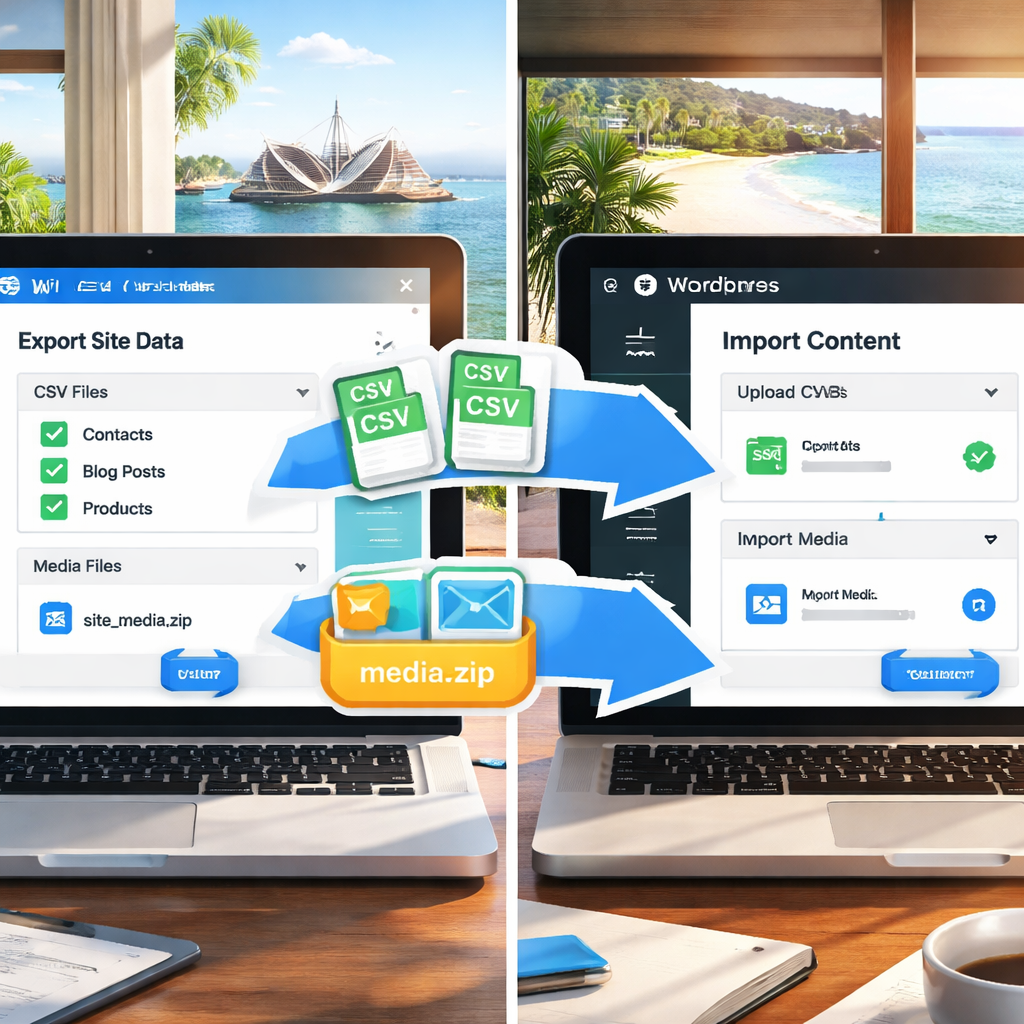
Now that your content lives on WordPress, the real magic happens when you redesign with SEO in mind. If you’re wondering how to keep every hard‑earned ranking while giving your site a fresh look, you’re in the right place.
First, pull up the spreadsheet you built in Step 1. Compare each old Wix URL with the new WordPress slug. Wherever you can keep the exact same path, do it – Google loves continuity. If a change is unavoidable, create a 301 redirect straight away in your .htaccess file or via a plugin like Redirection. Avoid redirect chains; a single jump from old to new preserves link equity.
Title tags, meta descriptions, and header hierarchy didn’t magically move when you exported the CSV. Open the SEO plugin you installed (Yoast or Rank Math) and batch‑import the values from your spreadsheet. If a page was ranking for “Brisbane boutique dresses”, keep that exact phrase in the title and description unless you have a solid reason to tweak it.
Skipping any of these is the digital equivalent of leaving a front door open – crawlers wander in, but they won’t know what they’re looking at.
WordPress gives you caching plugins, but you still need to serve images efficiently. Run each image through an optimiser like ShortPixel before uploading, and serve them in WebP where browsers support it. Enable lazy loading for below‑the‑fold pictures – it cuts load time dramatically on mobile, which matters for Brisbane shoppers browsing on the train.
Don’t forget to minify CSS and JavaScript. Many managed hosts include this out of the box, but double‑check the settings. A fast site not only pleases users, it sends a positive signal to Google.
When you rebuilt menus on WordPress, some links probably still point to the old Wix domain. Run a quick Screaming Frog crawl (the free version works for sites under 500 URLs) and filter for “Redirect” or “404”. Update any stray links to the new WordPress slugs. A strong internal link structure passes authority from your top‑performing pages to newer content.
Schema markup didn’t come across in the export, so add it now. For a local retail business, the “LocalBusiness” schema with name, address, phone, and opening hours helps Google display a rich snippet in search results. If you sell products, add “Product” schema with price, availability and review rating – it can earn you those eye‑catching stars.
Google’s guide on SEO after a migration highlights that structured data is a quick win to boost visibility post‑migration SEO checklist.
Before you hit “Go live”, preview the site on a phone, a tablet, and a desktop. Click through every main navigation item, submit a test checkout, and use the URL Inspection tool in Search Console to request indexing for the top pages. If everything loads without a hiccup, you’re ready to push the changes to your live domain.
Remember, redesign isn’t just about looking good – it’s about giving Google a clear, fast, and trustworthy signal that the same great business is now running on WordPress.
Once the site is live, keep an eye on rankings for the first few weeks. Small fluctuations are normal, but a steady climb means your SEO optimisation is paying off.
🐣 The Chick
Alright, you’ve rebuilt the site, copied over the meta tags, and added schema – now it’s time to put the pedal to the metal. The moment you hit “Go live” is exciting, but it can also feel like stepping off a cliff if you haven’t double‑checked the landing gear. If you’re ready to migrate from Wix to WordPress, this is the moment you’ve been waiting for.
Grab your favourite device – phone, tablet, laptop – and surf the staging site like a curious customer. Do the images load instantly? Are the “Add to cart” buttons actually adding products? Does the contact form still ping your inbox?
Here’s a quick 5‑point checklist you can copy‑paste into a note:
Does that feel like a lot? It’s actually a handful of things that will save you days of post‑launch firefighting.
When you’re happy with the staging site, it’s time to push it live. Most managed hosts – including the one we recommend at Free Website Chick – give you a one‑click “Push to Live” button. If you’re on a vanilla VPS, you’ll need to copy the database and files over via FTP or SSH.
Immediately after the switch, swing back to Google Search Console and hit “Request indexing” for your homepage and any high‑value pages. This nudges Google to crawl the fresh URLs sooner rather than later.
Now, keep an eye on these three signals for the first 48 hours:
And remember, the first week is the perfect time to fine‑tune performance. A Reddit user who migrated from Wix to WordPress shared that after the launch they noticed a slow LCP on the hero banner because the background image was loaded via CSS. It proves that anyone who decides to migrate from Wix to WordPress can sort out LCP issues quickly. The fix? Serve a WebP‑optimised version and add fetchpriority="high" to preload it. That kind of tweak can push a 2.9 second load down to under 2 seconds.
Set up a simple monitoring routine – you don’t need a fancy dashboard if you’re a small business. Here’s what works for most of our Brisbane clients:
Got a spike in traffic after a local event, like the Brisbane Festival? That’s your cue to double‑check the server load. If you see response times creeping above 500 ms, consider enabling a CDN or upgrading your host’s plan.
One of the biggest advantages of moving to WordPress is the ability to optimise on the fly. If you notice a particular product page dragging, try these quick wins:
For deeper dives, the guide on optimise WordPress performance walks through caching, CDN setup and script management – everything you need to keep that post‑migration site humming.
So, what’s the next move? Run your checklist, push live, and then set a 15‑minute daily habit to glance at Search Console for the first two weeks. Those few minutes will catch most hiccups before they turn into lost sales.
When you finally migrate from Wix to WordPress and the numbers start climbing again, you’ll know the migration was a win, not a gamble.
🐣 The Chick
Got a bunch of questions about how to migrate from Wix to WordPress? You’re not alone. Below are the most common worries we hear from Brisbane’s small‑business owners, plus clear steps you can take right now.
In most cases the rankings stay stable if you keep the same URLs or set up proper 301 redirects. Start by exporting a spreadsheet of every Wix URL, then map each one to its new WordPress slug. Use a redirection plugin or edit the .htaccess file so Google sees a one‑to‑one move. Check Search Console daily for crawl errors and fix any stray redirects within the first two weeks.
The easiest route is to export your Wix blog as an RSS feed, then import it via WordPress’s Tools → Import → RSS. Before you hit “Import”, download all media from the Wix Media Manager and upload the zip to the WordPress media library. Once the images are there, run a quick search‑replace on the post content to point old image URLs to the new /wp‑content/ path. That keeps the visual layout intact.
You can definitely do it yourself, especially if you follow a checklist. The biggest hurdles are URL mapping, media migration, and setting up redirects. If you’re comfortable installing plugins and copying CSV files, the process is manageable. However, if your site has custom code, e‑commerce integrations, or a large product catalogue, a quick call to a Free Website Chick specialist can save you days of debugging.
Wix stores let you export a CSV of SKUs, prices, and inventory. Import that file into WooCommerce using the built‑in CSV importer or a plugin like WP All Import. For order history, you’ll need a third‑party tool or a manual export, then re‑import as custom post types. Even if you can’t bring every old order, preserving product data and customer emails is enough to keep sales flowing.
Leave the Wix site untouched for at least 30 days while the 301 redirects settle and Google re‑indexes the new pages. During that window, monitor both Search Console and your analytics to spot any sudden traffic drops. Once you’re confident every high‑value page redirects correctly, you can cancel the Wix subscription and save the monthly fee.
Yes – use a free tool like Screaming Frog (the 500‑URL version is perfect for most Brisbane shops). Crawl the staging WordPress site, then run a second crawl on the live Wix domain. Export the “Redirects” report and compare the old URLs to the new ones. Any 404s or redirect chains show up instantly, so you can fix them before the final switch.
Run a fresh crawl of the live site with Screaming Frog or the free Broken Link Checker plugin. Any 404 URLs will appear in a spreadsheet; match them against your original Wix URL list and create a missing 301 redirect, or edit the internal link to point to the correct WordPress slug. After you update, re‑run the crawl to confirm zero errors before announcing the launch to customers.
🐣 The Chick
So there you are, staring at a fresh WordPress dashboard after weeks of juggling spreadsheets, media folders and 301 redirects.
If you’ve made it this far, you’ve already proved you can migrate from Wix to WordPress without losing sleep – and that’s a win.
Now that you’ve learned how to migrate from Wix to WordPress, the real fun begins with optimisation.
Remember the three things that kept the process smooth: a solid URL map, a tidy media export, and a quick Screaming Frog crawl to catch stray 404s.
Those steps turned a potential nightmare into a series of small, manageable tasks.
What’s the next move? Give your new site a few days of gentle traffic, watch the Search Console for any lingering errors, and tweak page speed where you see a dip.
A little patience now saves you a lot of frantic fixes later.
And if you ever feel stuck – maybe a stubborn plugin or an odd redirect chain – know that you’re not alone.
Plenty of Brisbane retailers have been where you are, and most of them landed on the other side with higher rankings and a happier checkout flow.
Finally, keep the momentum going. Use the insights you’ve gathered to optimise product pages, add schema, and fine‑tune your internal linking.
The more you polish, the more Google rewards you.
Ready to show off your new site to customers? Hit “publish” with confidence, then sit back and enjoy the traffic bounce back.
You’ve earned it.
🐣 The Chick