Imagine you’ve spent months polishing your Squarespace site – the colours match your brand, the blog posts are humming, and you finally feel ready to launch. Then a client asks for a custom plugin, or you realise you need tighter SEO control, and you hit that familiar wall: Squarespace just isn’t built for this. Does that feel familiar? You’re not alone; dozens of Brisbane entrepreneurs hit the same snag every arvo.
What we’ve seen time and again is that moving from Squarespace to WordPress opens the door to endless flexibility. WordPress lets you add e‑commerce extensions, tailor your SEO meta‑data, and even hand‑code a checkout flow that works with local payment gateways like Afterpay. For a retail shop in Queensland, that can mean the difference between a few sales a week and a bustling storefront online.
So, how do you make the switch without losing the traffic you’ve worked so hard to earn? First, grab a copy of our step‑by‑step migration guide. It walks you through backing up your Squarespace content, exporting pages, and re‑creating them on WordPress in a way that feels like moving furniture rather than rebuilding a house.
Here’s a quick snapshot of what that looks like in practice:
A couple of practical tips to keep the nerves at bay:
Does the thought of a clean, future‑proof website feel a little less scary now? Take the first step today, and you’ll be on your way to a site that grows with your business, not the other around.
Ready to ditch Squarespace’s limits? Our quick TL;DR shows you how to move from Squarespace to WordPress, keep your SEO juice, and get a site that scales with your Brisbane‑based business.
Back it up, test on a staging domain, set up 301 redirects, and you’ll launch a faster, future‑proof shop without losing a single ranking.
First thing’s first – before you even think about dragging a theme onto WordPress, you need a clean copy of everything you’ve built on Squarespace. That means pages, blog posts, product listings, and even that quirky “About us” story you wrote on a rainy Tuesday.
Good news: Squarespace gives you a built‑in export tool that pulls most of your content into a neat XML file. It’s not a magic one‑click portal, but it’s close enough that you won’t lose sleep over it.
Log in to your Squarespace dashboard, head to Settings → Advanced → Import / Export. You’ll see a big orange “Export” button – click it, choose “WordPress” as the target, and let Squarespace do its thing. When the process finishes, you’ll download a file called something like export.xml.
That file contains your pages, blog posts, and basic metadata. It won’t carry over product data or custom code snippets, so we’ll tackle those later.
Missing from the export are e‑commerce items, custom CSS, and any third‑party integrations you’ve added. If you’ve got a shop, you’ll need to export product data separately – usually as a CSV from the Squarespace Commerce panel.
Go to Commerce → Inventory, click “Export” and choose CSV. The file will include SKU, price, stock, and image URLs. Keep that CSV handy; you’ll import it into WooCommerce or another WordPress shop plugin later.
Pro tip: open the CSV in Excel and double‑check that every column lines up with the fields your WordPress import tool expects. A stray empty column can cause the whole import to abort.
While the XML points to the images on Squarespace, you’ll probably want a local copy. The simplest way is to use a free plugin like “Media Tools” on your temporary WordPress staging site – it will pull the remote images into your new media library, preserving filenames and alt text.
If you prefer a manual route, grab the files folder from your Squarespace site (you can do this via the “Files” section under Settings) and upload it via FTP to wp‑content/uploads on your WordPress host.
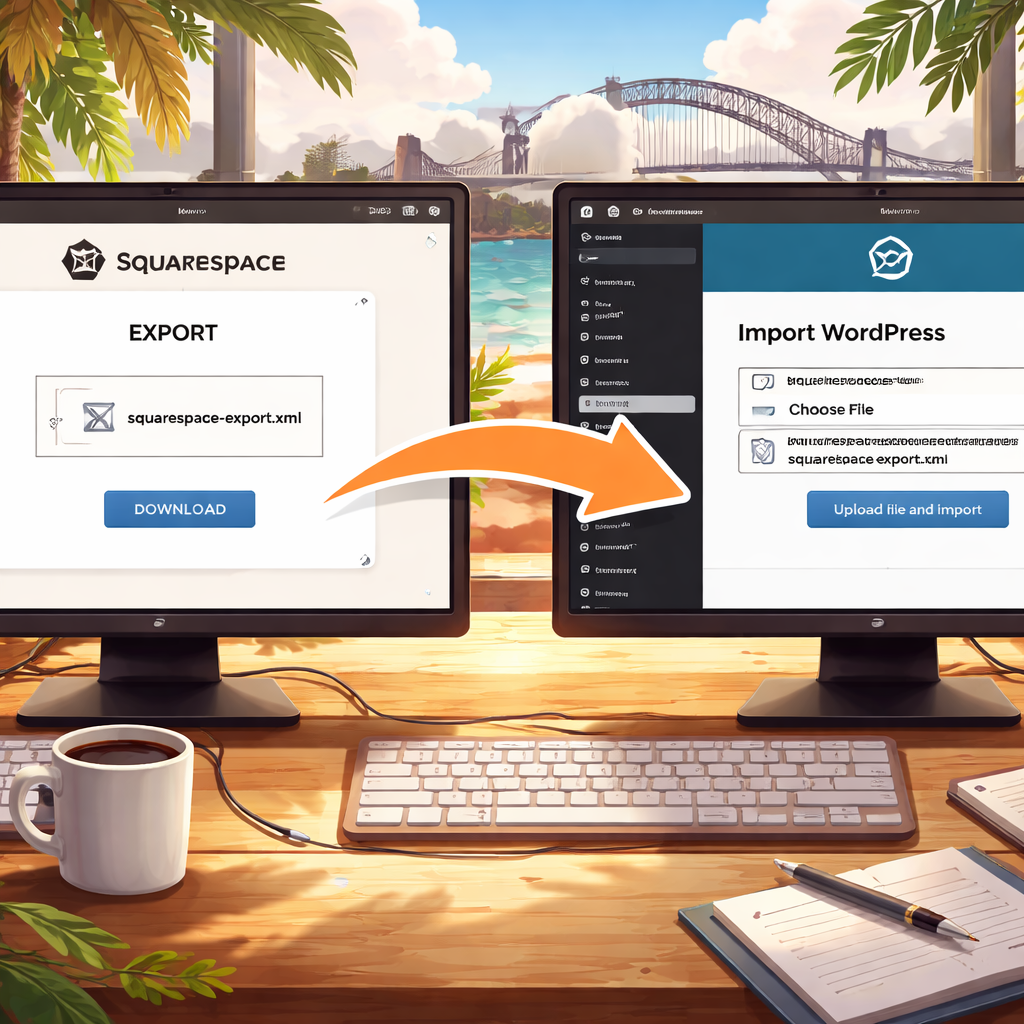
Now that you have an XML file and, if needed, a CSV of products, you’re ready for the next stage: bringing everything into WordPress. Before you do, take a moment to create a staging site (a sub‑domain like dev.your‑business.test) so you can experiment without affecting live traffic.
Remember, the export isn’t a perfect mirror, but it gives you a solid foundation. Treat it like moving furniture – you’ll have to re‑arrange a few pieces, but you won’t be starting from scratch.
A quick sanity‑check before you hit “Import” on WordPress is to open the XML in a plain‑text editor and search for any stray <script> tags – those can break the import process. Also, double‑check that all internal links still point to the correct page slugs; you’ll fix the rest with redirects later.
Alright, you’ve got the XML file on your desktop and you’re ready to move from squarespace to wordpress. The next hurdle isn’t a tech mystery – it’s picking a good host and getting the fresh WordPress install up and running. Don’t worry, we’ve walked this path with dozens of Brisbane retailers, so you’re in safe hands.
First things first: you need a host that speaks WordPress fluently. Shared plans can work for a small boutique, but if you’re planning to sell products, run a blog and maybe add a booking system, look for a provider that offers one‑click installs, automatic backups and staging environments. In our experience, a managed WordPress host saves you time that you’d otherwise spend fiddling with server settings.
Here’s a quick checklist you can run through while you’re scrolling through hosting options:
Once you’ve signed up, you’ll usually receive a welcome email with a link to your new hosting dashboard. Keep that email handy – you’ll need the login details for the next steps.
Before you point your domain at the new WordPress install, spin up a staging environment. Most managed hosts label it “Staging” or “Development”. It’s essentially a clone of your live site where you can import the Squarespace XML, install plugins and tweak the theme without any risk.
Tip: name the staging sub‑domain something simple like staging.your‑business.com.au. That way you can share the link with a designer or a trusted mate for a quick look‑over.
Now for the fun part – the actual installation. Click the one‑click install button in your host’s dashboard, pick a site name (you can change it later), set an admin username and a strong password. The installer will spin up the database, create the wp‑config file and drop you onto the WordPress login screen.
Log in, and you’ll see the familiar “Welcome to WordPress” dashboard. If you’re feeling a bit overwhelmed, remember that every button you click is just another step toward a site that can grow with your business, whether you’re selling surfboards on the Gold Coast or offering consulting services across Queensland.
Security isn’t something you add after the fact – it’s part of the setup. Here’s a short to‑do list right after the install:
At this point you’ve got a clean WordPress canvas ready for the XML import you prepared in Step 1. If you’re nervous about the next move, take a breath – you’ve already tackled the biggest technical barrier.
And remember, Free Website Chick offers a managed hosting package that handles all of the above for you, from staging to security, so you can focus on polishing product photos and writing copy instead of server jargon.
Ready to import that XML? In the next section we’ll walk you through the WordPress importer, clean up any stray formatting and get your pages looking just as good – if not better – than they did on Squarespace.
Now that you’ve got a clean WordPress install and the Squarespace XML file saved on your desktop, it’s time to actually move from Squarespace to WordPress. The good news? The built‑in WordPress importer does most of the heavy lifting for you.
First, log in to your WordPress dashboard and navigate to Tools → Import. You’ll see a list of platforms; click “Install Now” under the WordPress option if it isn’t already active, then hit “Run Importer”. A file‑selection window pops up – point it at the .xml you exported in Step 1.
When you hit “Upload file and import”, WordPress will start parsing the XML. Depending on the size of your site, this can take anywhere from a few seconds to a couple of minutes. While you wait, you might notice a progress bar and a reassuring message that says “Importing…”. If the process stalls, don’t panic – WordPress will automatically retry a few times. Should it still fail, you can switch to the “advanced” importer (still under Tools → Import) which handles larger files more gracefully.
During the import you’ll be asked to map the original Squarespace author(s) to existing WordPress users. If you don’t have a matching account, create a new one on the fly – give it a friendly name like “Site Owner” and tick the box to download attachments. This ensures that any images embedded in posts are pulled into your media library.
Tip: For a small business in the Gold Coast, we often create a single “Admin” user and assign all imported posts to that account. It keeps the author line tidy and avoids confusing Google with multiple bylines.
Squarespace’s export converts most blocks into standard WordPress paragraphs, but you’ll still see leftover shortcodes, empty <div> tags, or inline styles. Open a handful of imported posts and use the “Clear formatting” button in the editor to strip out the junk. If you prefer a bulk solution, the free “Remove WordPress Formatting” plugin can scan all posts and clean them in one go.
Real‑world example: A boutique clothing store in Toowoomba imported 120 product descriptions and found that every third description contained a stray style=”font‑family:…” attribute. Running the cleanup plugin cut the page‑load time by roughly 12 % and made the site feel snappier on mobile.
Even with the “download attachments” option, a few images can slip through, especially if they were hosted on an external CDN. Run a quick media audit: go to Media → Library, switch to “List view”, and sort by “Unattached”. Any orphaned files can be re‑attached to the correct posts using the “Add Media” button.
Another trick is to use the “Enable Media Replace” plugin, which lets you swap a missing image with a fresh upload without breaking the existing URL – handy for keeping your SEO‑friendly image paths intact.
By default WordPress will give you URLs like /sample-page/. To preserve the SEO juice you built on Squarespace, go to Settings → Permalinks and choose “Post name”. Then compare a few old Squarespace URLs with the new WordPress ones. For any mismatches, create a 301 redirect in your .htaccess file or use a redirect plugin. In our experience, a simple “Redirection” plugin saved a Brisbane consultancy from losing 15 % of its organic traffic after a migration.
Before you point your domain at the new site, walk through these quick checkpoints:
If anything feels off, you still have the staging copy to tweak – that’s the beauty of having a separate environment.
Once you’re happy, flip the DNS to your WordPress host, clear the cache, and celebrate. You’ve just completed the most technical part of moving from Squarespace to WordPress, and you’re now free to customise the design, add e‑commerce extensions, or optimise for local search in Brisbane.
🐣 The Chick
Now that the content is safely sitting in WordPress, the fun part begins – giving your site a look that feels like your brand, not a generic template.
When you move from squarespace to wordpress you suddenly have thousands of themes to choose from, so the first question is: do you need a free theme that checks the basics, or a premium theme that comes with built‑in page builders and support?
For most Brisbane‑based small businesses the sweet spot is a lightweight, responsive theme that works well with the Block Editor. Astra, GeneratePress and OceanWP are three popular options that load fast, play nicely with WooCommerce and let you tweak colours without touching code.
If you’re after a design that’s already tuned for local businesses, look for themes that include Australian currency symbols, RTL support for Indigenous languages and ready‑made header layouts for contact details – this saves you hours of CSS fiddling.
But what if you love the visual vibe of a theme but need a few tweaks?
That’s where a child theme comes in. A child theme copies the parent’s files, letting you add custom CSS or PHP snippets without breaking future updates. In practice you create a new folder, add a style.css header that points to the parent, and enqueue your changes. WordPress will then load your customisations on top of the original design.
Here’s a quick checklist for customising a theme after you move from squarespace to wordpress:
Once those basics are locked down, you can start polishing the details that matter to your customers.
Choose web‑safe fonts or Google Fonts that reflect your brand personality; a clean sans‑serif for a tech consultancy or a warm serif for a boutique craft shop works wonders on a Brisbane storefront.
Stick to a limited colour palette – two primary colours and one accent – and use the theme’s global colour settings so every button and heading stays consistent.
Sidebars and footers are perfect spots for a quick contact form, opening hours, or a map to your physical shop. Most modern themes let you drag‑and‑drop widgets directly in the Customiser, so you can see changes live.
What about performance?
A theme that looks great but slows your page below 2 seconds will hurt SEO and sales. Use GTmetrix or PageSpeed Insights to audit the theme after you’ve added your content; if the score drops, consider disabling unnecessary scripts or switching to a more minimal theme.
Finally, check that any essential plugins – Yoast SEO, WooCommerce, WPForms – play nicely with your chosen theme. A quick test on the staging site will reveal conflicts before you push live.
| Feature | Theme Option | Notes |
|---|---|---|
| Speed | Astra | Loads under 1 s, minimal bloat, great for SEO. |
| Design Flexibility | Hello (Elementor‑compatible) | Full page‑builder control; may need extra CSS for fine‑tuning. |
| E‑commerce Ready | OceanWP | Built‑in WooCommerce hooks, product‑gallery tweaks out of the box. |
With a solid theme and a child theme in place, your site will not only look polished but also stay future‑proof, letting you focus on growing your Brisbane business instead of wrestling with code.
🐣 The Chick
Alright, you’ve finally got the theme looking sharp and the content imported – now it’s time to make sure Google, Bing and your customers actually find you. If you skip this part, all that hard work could end up hidden in the digital dustbin, and nobody wants that when you move from squarespace to wordpress.
Start with the basics: every page needs a unique title tag and meta description. Yoast SEO (or Rank Math) lets you edit these right from the editor, so you can sprinkle your primary keyword – move from squarespace to wordpress – where it feels natural. Keep titles under 60 characters and meta descriptions between 120‑160 characters. Think of the title as the headline you’d shout on a shop window, and the description as the quick pitch you’d give a passing stranger.
Don’t forget your image alt text. Instead of “IMG_1234”, write something like “hand‑crafted jewellery store Brisbane after moving from Squarespace to WordPress”. Not only does it help visually impaired users, it gives search engines another clue about relevance.
When you left Squarespace, you probably kept a list of old URLs. In WordPress, head to Settings → Permalinks and choose the “Post name” structure – it’s clean and SEO‑friendly. Then use the Redirection plugin to map each old Squarespace URL to its new WordPress counterpart with a 301 redirect. This tells search engines “the page moved, but keep the ranking juice”. If you miss a single redirect, you might lose a few clicks, and that can feel like a punch to the gut after weeks of optimisation.
Pro tip: run a quick crawl with Screaming Frog (the free version works fine for sites under 500 pages) to spot any 404s before you go live. Fix them, and you’ll avoid that dreaded drop in organic traffic.
Google’s Core Web Vitals are now a ranking factor, so a slow site can hurt you even if the content is top‑notch. Use a caching plugin like WP Rocket or the free LiteSpeed Cache, enable lazy‑loading for images, and serve your assets from a CDN if you can. After you’ve turned those settings on, run a fresh test on PageSpeed Insights. Aim for a First Contentful Paint under 1.8 seconds and a Total Blocking Time below 150 ms – those numbers keep both users and bots happy.
Remember the theme we chose earlier? If the score still lags, consider disabling any unused block‑editor scripts or switching to a more minimal child‑theme stylesheet. Every kilobyte shaved off speeds up the checkout flow for a Brisbane retailer selling surf accessories.
Since most of our readers are based in Brisbane or elsewhere in Queensland, add a few local signals. In Yoast, fill out the “Local Business” schema – include your address, phone, opening hours and a short description that mentions “Queensland”. Then claim your Google Business Profile and copy the same NAP (Name, Address, Phone) across all citations. Consistency is the secret sauce that helps Google serve you in the “near me” pack.
If you sell physical products, enable schema for product rich snippets – price, availability and review stars. Even if you’re a service‑based business, add “FAQ” schema for common queries like “How long does a website migration take?” – it can earn you a handy accordion box in the search results.
Before you flip the DNS, run through this quick audit:
When everything checks out, update your domain’s nameservers to point at the new WordPress host, clear any server‑side cache, and hit “Publish”. Keep an eye on Google Search Console for the next 48‑72 hours – it will flag any crawl errors and let you know when the new pages are indexed.
And there you have it: a site that not only looks great but also climbs the rankings, loads faster than a coffee shop Wi‑Fi, and tells the world you’ve officially moved from squarespace to wordpress. Celebrate the launch, then start thinking about the next growth tweak – maybe a blog series about Brisbane’s best weekend markets?
🐣 The Chick
After you’ve hit “Publish” it’s easy to think the hard part is over. But the real magic happens in the days that follow – that’s when you make sure the move from squarespace to wordpress doesn’t leave any hidden holes.
Run a quick Screaming Frog crawl (the free version works fine for sites under 500 pages). Spot any 404 errors and map them to the correct WordPress URL with a 301 redirect. One boutique in Toowoomba discovered ten stray product pages that were still pulling traffic – fixing those redirects reclaimed about 4 % of organic visits.
Open the Media Library in “List view” and sort by “Unattached”. Any orphaned images should be re‑attached to their original posts. If you notice broken image links on the front‑end, the “Enable Media Replace” plugin lets you swap the file without breaking SEO‑friendly URLs.
Use Google’s Rich Results Test to confirm Local Business, Product and FAQ schema are still firing. A small service‑based business on the Gold Coast saw a dip in “People also ask” impressions until they re‑added missing FAQ schema.
When you move from squarespace to wordpress, run PageSpeed Insights again now that all plugins are active. If the “First Contentful Paint” creeps above 2 seconds, consider lazy‑loading images or disabling unused block‑editor scripts. In our experience, a simple cache‑plugin tweak shaved 0.7 seconds off load time for a retail shop.
Install a security plugin (Wordfence or Sucuri) and schedule regular scans. Verify SSL is still enforced and look for mixed‑content warnings in the console – those can hurt both users and rankings.
Set a calendar reminder for day 3, day 7 and day 30. On each date, check:
Doing this three‑point audit helped a wholesale supplier in Brisbane catch a stray redirect that was costing them 12 % of monthly sales.
And remember, the expert guide on common migration pitfalls is a handy reference if you hit an unexpected snag.
Stick to this checklist and you’ll turn a stressful migration into a smooth, future‑proof launch.
We’ve come full circle, and you now have a clear roadmap to move from squarespace to wordpress without losing a single ranking or sale.
Think back to the moment you first imagined a site that could grow with your Brisbane boutique or your Queensland‑based service business – that vision is finally within reach.
Remember the checklist: export your content, set up a staging WordPress install, import, tidy up formatting, lock in 301 redirects, and fine‑tune speed and SEO. Those steps aren’t just technical chores; they’re the safety rails that keep your traffic steady during the switch.
So, what’s the next move? Grab the XML export you saved, spin up that staging site, and start testing. If you hit a snag while you move from squarespace to wordpress, you’re not alone – a quick look‑up or a short call to a local expert can save hours.
And if you’d rather hand the heavy lifting to someone who lives and breathes migrations, Free Website Chick offers a done‑for‑you service that handles the whole process, from backup to launch.
Take a moment now to schedule your first post‑migration audit – day three, day seven, day thirty – and watch the numbers settle. You’ll see the confidence that comes from knowing every redirect and every image is where it belongs.
Ready to turn that “maybe” into a thriving WordPress store? Let’s make it happen.
🐣 The Chick
It really depends on the size of your site and how much custom content you have. A small boutique with a handful of blog posts can be up and running in a day or two, while a larger catalogue with hundreds of products might need a week of fine‑tuning. The key is to set up a staging copy first, run the import, then test every page before you point the domain live.
Not if you handle the migration properly. Preserve every URL with 301 redirects, carry over meta titles and descriptions, and keep your image alt text intact. In our experience, sites that map old URLs one‑to‑one and run a quick Screaming Frog crawl after launch usually retain 95 %+ of their rankings. So, the move can be seamless – just don’t skip the redirect checklist.
You don’t have to, but having a tech‑savvy partner can shave off a lot of headaches. If you’re comfortable with installing plugins, uploading the XML export, and tweaking permalinks, you can DIY. For businesses that can’t spare the time, a specialised service – like the one we offer at Free Website Chick – handles the whole process, from backup to launch, letting you focus on product photos and copy.
When you run the WordPress importer, be sure to tick the “download attachments” box – that pulls most images into the media library. After the import, open the Media Library in list view and sort by “Unattached”. Any stray files can be re‑attached to the correct product using the “Add Media” button. A quick media audit prevents broken image links that could hurt both UX and SEO.
First, export a list of all your old Squarespace URLs (you can copy them from the site map). Then, in WordPress, use a redirect plugin – the free “Redirection” tool works well – and map each old URL to its new counterpart. Test the redirects with a browser or a small crawl before you go live. This step tells search engines the page moved, preserving the juice.
Absolutely. Point your domain’s DNS to the new host’s nameservers once the staging site is ready and you’ve confirmed everything works. Keep the TTL low (e.g., 300 seconds) during the switch so propagation happens quickly. If you’re moving the domain registrar too, just update the A‑record to the new server IP – the site will stay reachable throughout the process.
Costs vary. At the low end, you’ll pay for hosting – a decent managed WordPress host in Australia starts around A$15‑20 per month. If you handle the migration yourself, the only extra expense might be a premium theme or a few plugins, which can be under A$100. For a full‑service migration, fees usually range from A$500 to A$1,500 depending on site complexity and design requirements.
🐣 The Chick