Picture a customer scrolling through your shop on a cramped phone screen, their thumb hovering over a broken menu button. That’s the real‑world cost of a site that thinks desktop first.
Have you ever clicked away after seeing a slow, unresponsive page? I’ve seen small‑biz owners lose dozens of sales that way.
In the next few minutes I’ll show you why mobile‑friendly design isn’t optional – it’s the difference between a checkout that clicks and one that glitches.
Take a Brisbane café that recently switched to a responsive menu. Their foot‑traffic stayed the same, but online orders jumped 35% in just three weeks.
At Free Website Chick, we specialise in making those transitions painless. We build sites that load in under a second on a 4G network and keep the navigation clear whether you’re on a phone, tablet, or laptop.
Want to see how a clean layout can boost confidence? Check out our Design page where we showcase real‑world examples that work for Aussie retailers and service providers.
But design alone isn’t enough. Your product pages need quick access to add‑to‑cart buttons, crisp imagery, and mobile‑optimized checkout forms. Think of it as a smoothie bar – all the ingredients should be reachable in one swipe.
Action step one: audit your current site’s mobile performance with the free Google PageSpeed Insights tool. Note any “Large‑Layout‑Shift” warnings and prioritize fixing them.
Step two: reduce image file size without losing quality using TinyPNG or our in‑built compression. Every 10% bandwidth saved can translate to faster load times and higher conversion rates.
If you’re looking to sell branded bottles on the go, consider how a mobile‑friendly checkout can boost impulse buys. For a practical example, check out Quench Bottles, which partners with local cafés to offer on‑the‑spot, custom drinkware.
If your small business still fights slow sites, a mobile friendly website design can turn traffic into purchases, boosting orders by up to 35% in weeks. Audit with PageSpeed Insights, compress images, and keep add‑to‑cart buttons within one swipe—every millisecond saved on a 4G network keeps customers ready to buy.
Picture this: a visitor taps your menu button, but the page lags, the images hang, and the checkout form feels like a maze. That’s the cost of a desktop‑centric design that forgot the phone in its back pocket.
First off, grab Google PageSpeed Insights or Lighthouse. Run the test on a real 4G network if you can. The score is your quick health check—anything below 70 is a red flag. Look for those dreaded Large Layout Shift warnings; they’re the invisible jolt that turns a smooth tap into a frustrated swipe.
Next, map the user journey on a phone. Start at the home page, slide to the product grid, tap a card, hit the add‑to‑cart button, and finally land on the payment page. If you’re stuck scrolling or squinting, that’s a signal to rethink the layout.
Use the “mobile usability” report in Google Search Console to spot broken touch targets. Buttons that are too close together or text that’s smaller than 16px will trip up thumbs on small screens.
Image optimisation is a game‑changer. Compress JPEGs and PNGs with an online tool or a plugin. A 20% reduction in file size can shave a full second off load times, and that half‑second can mean the difference between a purchase and a bounce.
Don’t forget typography. Stick to one or two web‑safe fonts and keep font weights consistent. Heavy weight stacks can slow rendering, especially on older Android phones.
Set up a checklist: Score check, layout audit, touch target review, image compression, font optimisation. Tick each box on a mobile device. If any item fails, flag it for redesign.
Once the audit is done, document the pain points and share the findings with your design team. That conversation is where the “mobile friendly website design” shift starts. They’ll know exactly where the friction is, and you’ll have a concrete plan to smooth it out.
Remember, the goal is to make every tap feel effortless. When the journey feels like a coffee chat—smooth, quick, and enjoyable—your visitors will keep coming back.
🐣 The Chick
Punchy advice, no fluff, and occasional chicken puns.
So, after you’ve nailed the audit, you’re ready to pick a framework. Think of it like choosing a coffee shop: you want something that serves your style, fits your budget, and lets you sip without a drip.
A framework is the skeleton that holds your mobile friendly website design together. If the bones are weak, the page feels sluggish, the buttons wobble, and the user exits before adding to cart. That’s why picking the right one is less about tech jargon and more about user flow.
In Brisbane, traffic often comes from 4G on trains or café Wi‑Fi. A lightweight, modular framework auto‑optimises for those speeds, keeping the hot‑coffee feel even on shaky connections every single day.
Grab a handful of candidate frameworks and run them against the audit checklist quickly you used before. Measure PageSpeed, LCP, toggle the grid on a 5‑inch screen. If the menu collapses gracefully and CTA stays above the fold, you’re onto something amazing and keep users engaged.
Once you’ve shortlisted, set up a quick prototype on a staging site. Invite a few regular customers to test the flow on their phones and note any friction points. If it feels natural, the framework is ready for production for your store to boost conversions.
Platforms like Free Website Chick make it simple to pick a framework that fits your brand. We’ll guide you through setup so you can focus on running your business for all your online needs and keep your brand alive.
Now you’ve got the map, time to lay the road.
🐣 The Chick Punchy advice, no fluff, and occasional chicken puns.
When you’re designing a mobile friendly website, the first thing you’ll notice is how quickly the page loads on a 4G network. If you can’t get under a second, you’re already losing customers before they even see your logo.
So, what do you tweak? Start with the basics: use a responsive grid that automatically stacks images, text and CTAs in a single column on phones. Then test in portrait mode on a 5‑inch phone and make sure the menu collapses into a clean hamburger icon that takes up no more than 15% of the width.
People tap with their thumbs, not precise pointers. Make every link and button at least 48px tall and leave 10–12px of breathing room around each one. If you’re using custom icons, double‑check they’re at least 24×24 pixels so they’re not pixelated on high‑density screens.
Your headline, hero image and primary CTA should all be visible without scrolling. If you need to hide a banner behind a sticky header, be sure the header itself is no thicker than 70px and fades quickly when the user starts to scroll.
Anything that isn’t immediately visible can be lazy‑loaded. This keeps the initial paint light and lets the browser focus on the headline and CTA first. Many CMSs have built‑in lazy‑load settings; if not, a small JavaScript snippet does the trick.
Move large scripts to the bottom of the page or load them asynchronously. A heavy script that blocks rendering can push LCP well beyond 2.5 seconds, which is a no‑no on mobile.
Use Google’s Mobile-Friendly Test or Lighthouse in Chrome DevTools. Look for issues like tap target size, text scaling and unresponsive layouts. Fix each one, retest, and repeat until you hit the “mobile‑friendly” badge.
Finally, get a real user to open the page on their own phone, play around with the menu and try adding an item to the cart. If they can do it without squinting or double‑taps, you’ve nailed mobile friendly website design.
Remember, small tweaks add up: a faster load time can mean a 15% higher conversion rate for local cafes and boutique shops in Brisbane and across Queensland.
When you’ve got the audit sorted, it’s time to make sure people can actually get around your site on a tiny screen. Think of navigation as a map in a coffee shop: if you can’t see where the espresso machine is, you’ll just wander around.
First, pick a pattern that feels natural. Accordions are great for a handful of categories, but if you’re running a boutique with dozens of product lines, a slide‑in menu that shows one level at a time keeps the page from feeling cluttered. The key is to minimise the number of taps you need to get to the thing you want.
Here’s a quick decision ladder:
Does that make sense? If you’re not sure which pattern fits your store, test a prototype in Chrome DevTools and see how it feels on a 360‑pixel wide screen.
Next, size matters. Every tap target should be at least 48px tall and have 10–12px of spacing. On phones, that’s roughly the size of a thumb. If you’re using icons, make sure they’re at least 24×24px so they don’t look blurry on a Retina display.
Here’s a handy rule: the main call‑to‑action in your menu should be one tap away from the header. If a user has to scroll down a whole page to click “Shop Now”, you’re losing sales.
Remember to keep the header lightweight. A 70px sticky header is fine, but it should fade or shrink once scrolling starts so it doesn’t crowd the screen. If you’re using JavaScript, keep it async or move it to the footer so it doesn’t block the first paint.
Want deeper guidance? The Smashing Magazine guide breaks down the pros and cons of each pattern with code snippets you can copy right away.
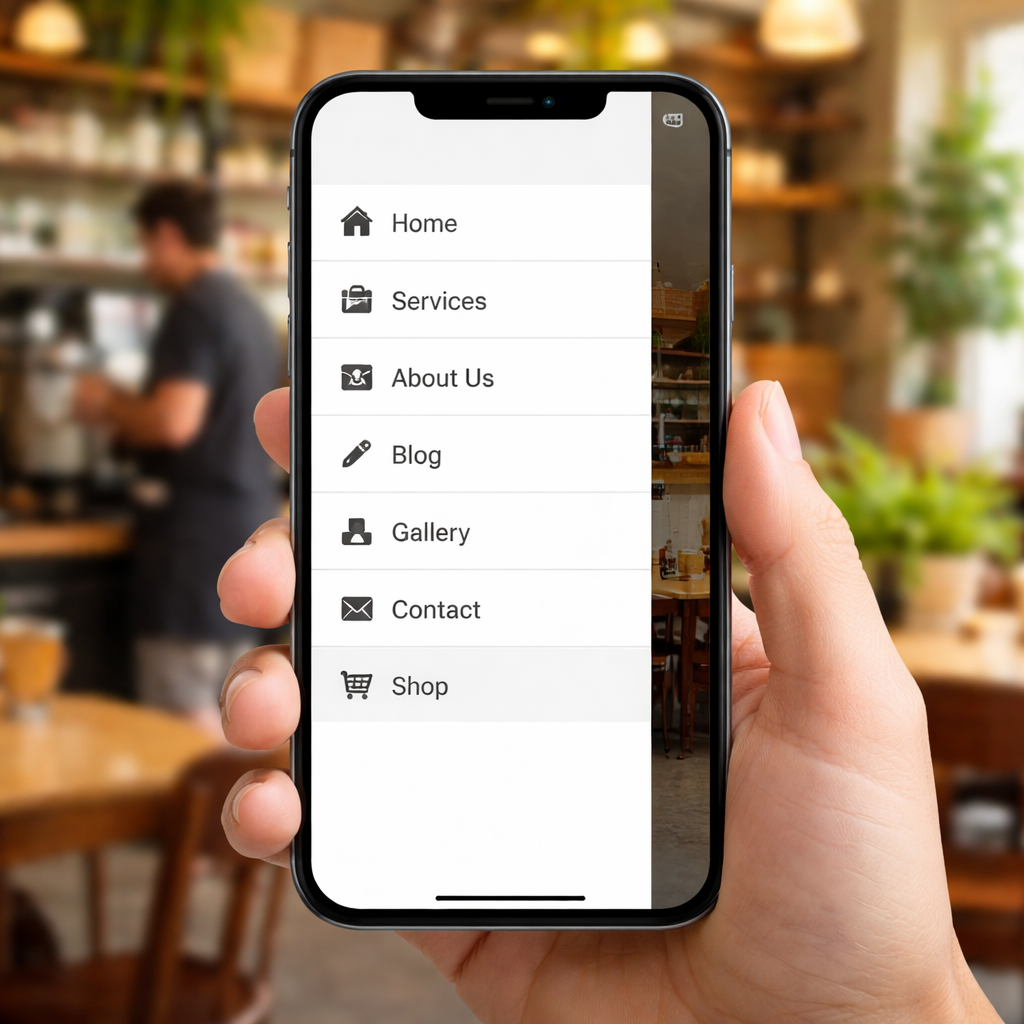
| Feature | Best Practice | Example |
|---|---|---|
| Menu type | Accordion for 1‑2 levels, slide‑in for >2 levels | Brisbane boutique uses accordion for “Clothing” and slide‑in for “Accessories” |
| Tap target size | ≥48 px tall, 10‑12 px spacing | “Add to basket” button in the cart drawer |
| Header behaviour | Fade or shrink on scroll, keep under 70 px | Fast‑Food shop header collapses after 200 px scroll |
Once you’ve set up your navigation, run a quick Lighthouse audit on a mobile viewport. Look for “tap target size” warnings and “largest contentful paint” times. Fix each issue, retest, and repeat until you’re at a solid 80+ score and a LCP under 2.5 seconds.
Finally, hand the phone to a regular customer, ask them to find a product, add it to cart, and checkout. If they can do all that without double‑taps or scrolling past the menu, you’ve nailed the mobile experience. 🐣 The Chick Punchy advice, no fluff, and occasional chicken puns.
Picture this: a customer scrolling through your shop on a 4G network, expecting to add a mug to the cart in under two seconds. If the page takes longer, that moment turns into a pause, and by the time it finishes, they’re already looking at another site. Speed isn’t just a nicety – it’s a conversion driver.
First, grab your Lighthouse score again, but this time focus on the Largest Contentful Paint (LCP). Anything over 2.5 seconds is a red flag. It means the biggest visual element on the page is still loading when your visitor is trying to decide what to buy.
Use Chrome DevTools – open the Network panel, switch to the Mobile tab, and watch the waterfall. Look for large JS bundles or heavy fonts that sit at the top of the list. Those are your prime suspects for delay.
Next, examine your CSS. Inline critical styles can shave off a hundred milliseconds, while deferring non‑critical CSS lets the browser paint the visible area faster.
Remember, every 100 ms saved can lift conversion rates by up to 1%. It’s small, but multiplied across thousands of visits, the impact is huge.
Anything that isn’t visible above the fold should load later. This includes product images, reviews, or even your newsletter sign‑up form. Lazy‑loading keeps the initial payload lean.
Test again with Lighthouse after each tweak. You should see a drop in both LCP and First Input Delay (FID), giving your visitors a smooth, instant feel.
Want a deeper dive into optimizing for speed? The mobile web design guide offers a step‑by‑step breakdown of performance best practices that are still relevant in 2026.
Finally, keep a tiny check‑list on hand: LCP < 2.5s, FCP < 1.5s, FID < 100ms, Images < 200 KB, Minimise critical CSS. Run it whenever you add a new product or tweak a layout.
If the page stays snappy, your customers will stay happy, and Google will reward you with better rankings. Keep the momentum, keep the speed, and watch your sales climb.
🐣 The Chick Punchy advice, no fluff, and occasional chicken puns.
Testing, iteration and accessibility aren’t just extra chores—they’re the safety net that turns a slick design into a sticky experience.
Think of your mobile friendly website design like a well‑trimmed garden. If a single weed grows unchecked, visitors will skip over it. So, what should you check first? Start with automated tools: Lighthouse, axe DevTools or the Web Vitals report. Hit run on a 4G simulation and grab the scores for LCP, CLS and FID.
When you see a CLS over 0.1, images or ads are moving while the page is loading. That’s a signal that a thumb might tap the wrong thing. The fix? Add loading='lazy' to non‑above‑the‑fold images and use sizes attributes so the browser knows the correct width.
Accessibility is a two‑way street. Test colour contrast with the Colour Contrast Analyzer. A poor ratio can blind users in bright sunlight, and you’ll lose sales when they can’t read your pricing. Aim for a contrast ratio of at least 4.5:1 for body text and 3:1 for large text.
Keyboard navigation is another quick win. Tab through the page and check that every interactive element is reachable and labelled with a clear aria-label. If you’re using custom components, double‑check that they expose the proper roles.
Once you’ve patched the obvious issues, it’s time to bring in a human eye. Ask a local Brisbane coffee shop owner to try the checkout on their phone and note any friction. Their real‑world feedback will reveal patterns you miss in automated scans.
Iteration is the name of the game. Set a cadence—weekly or monthly—so you keep the numbers improving rather than letting them drift. Create a simple spreadsheet that logs Lighthouse scores, contrast ratios and user notes. When a metric spikes, investigate and re‑run the test.
Remember: every 100 ms saved can lift conversion rates by up to 1%. A small, accessible tweak is the fastest way to keep your visitors from tapping away. Treat testing like a health check: it keeps the site alive and the customers happy.
🐣 The Chick Punchy advice, no fluff, and occasional chicken puns.
Now that we’ve walked through the nuts and bolts of mobile friendly website design, the big picture is clear: a quick, accessible experience keeps customers coming back. It’s not just about pixels; it’s about a tap that lands where you expect, and a page that loads faster than the coffee you brew.
Remember: speed matters—aim for an LCP under 2.5 seconds. Keep tap targets at least 48 px tall so a thumb can hit the right button. And always test with real users, because a human eye catches quirks a script can’t.
Action time: grab your favourite device, run a quick PageSpeed Insights check, tweak the biggest bottleneck, and ask a regular customer to add a product to the cart. If it feels effortless, you’ve nailed mobile friendly website design; if not, loop back and adjust.
A handful of micro‑improvements can shave 200 ms, which Google says lifts conversions by about 1 %. Those small gains add up to big wins for your Brisbane shop, Queensland kiosk, or online boutique.
So keep testing and iterating, letting your site feel like a order: fast, reliable, worth the wait. Customers thank you, and metrics follow.
🐣 The Chick Punchy advice, no fluff, and occasional chicken puns.
Q1: What exactly makes a website “mobile friendly”?
A1: It’s the layout, speed and touch friendliness that lets a small screen feel natural. A good mobile‑first design stacks columns, scales images, and keeps tap targets at least 48 px tall so a thumb can hit them without double‑tap. If the page loads in under two seconds on a 4G network and a headline is visible without scrolling, you’ve got a mobile‑friendly website design.
Q2: How can I tell if my checkout page is mobile‑ready?
A2: Look for three things: first, the “Add to cart” button should be larger than 48 px and sit above the fold; second, the form fields must auto‑focus on a tap, not require mouse‑over; third, the total cost should display instantly, not after a script delay. Run a quick PageSpeed Insights test—if LCP is under 2.5 s and FID below 100 ms, you’re on track.
Q3: What’s the best way to keep images fast on mobile?
A3: Compress them with WebP or AVIF and set an appropriate width attribute. Lazy‑load anything that’s not above the fold; this means images in the footer or product galleries load only after the user scrolls. Also, use a CDN that serves edge locations near Brisbane or Queensland so the data travels a shorter distance and the page feels snappier.
Q4: Can I still use a desktop‑first framework and hope it works?
A4: You can, but you’ll likely run into hidden pitfalls. Desktop‑first themes often leave oversized fonts, large navigation bars and hover‑only menus that break on touch. The result is a longer LCP, higher CLS and a frustrated user who can’t find the shop button. Switching to a mobile‑first framework removes those blockers at the source.
Q5: How do I test for accessibility on a mobile site?
A5: Start with automated checks like Lighthouse or axe to catch colour contrast and ARIA labels. Then grab a real customer—ask them to navigate from the home page to checkout using only a phone. Notice if any element is hard to read in bright sunlight or if a button is too close to another. Fix any mis‑aligned tap zones and re‑run the test.
Q6: What’s the easiest tweak to shave a second off my load time?
A6: Remove the largest JavaScript bundle that’s not needed for the first paint. Move any heavy scripts to the end of the body or load them asynchronously. Combine small CSS snippets into a critical‑path block. Even a 150‑ms gain can lift conversion rates by a percent or more across thousands of Brisbane shop visits.